
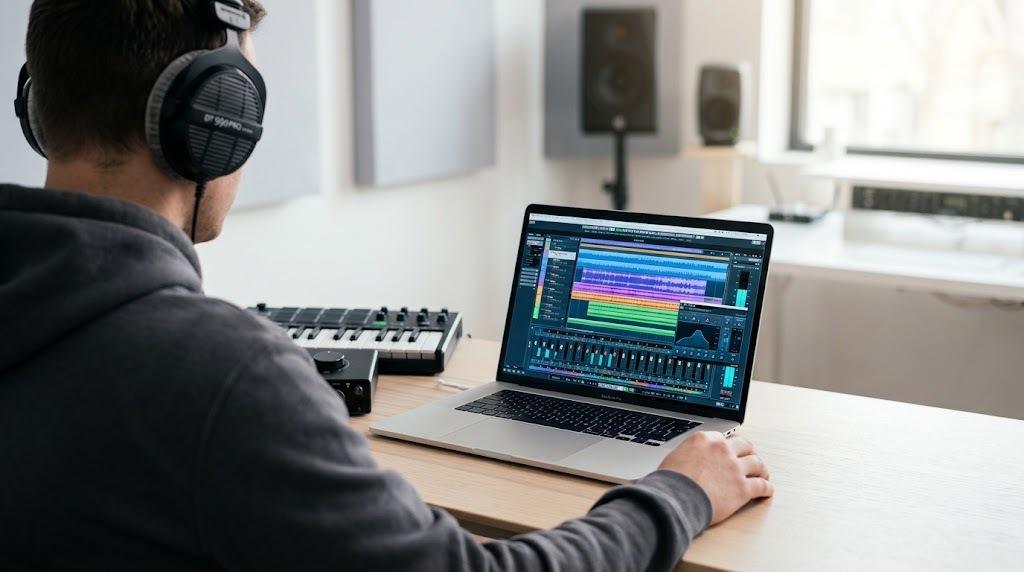
Ever lose a good take because your laptop froze mid-session? The best laptop for music production has a fast CPU, enough RAM, and fans quiet enough that your mic doesn’t pick them up.
We put our picks through the same 60-track test to see which ones hold up. Below you’ll find the best budget laptop for music production, the best MacBook for music production, and the right pick for FL Studio or Ableton Live users.
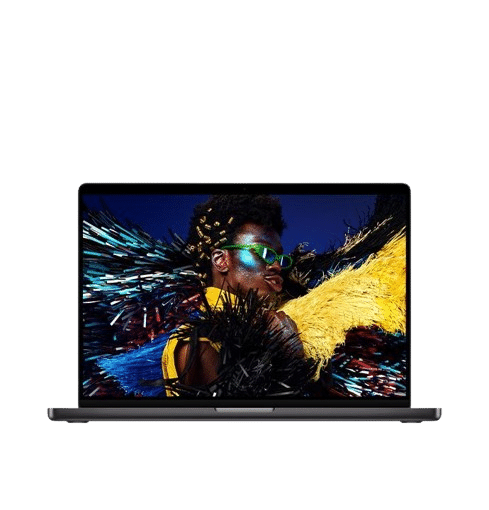
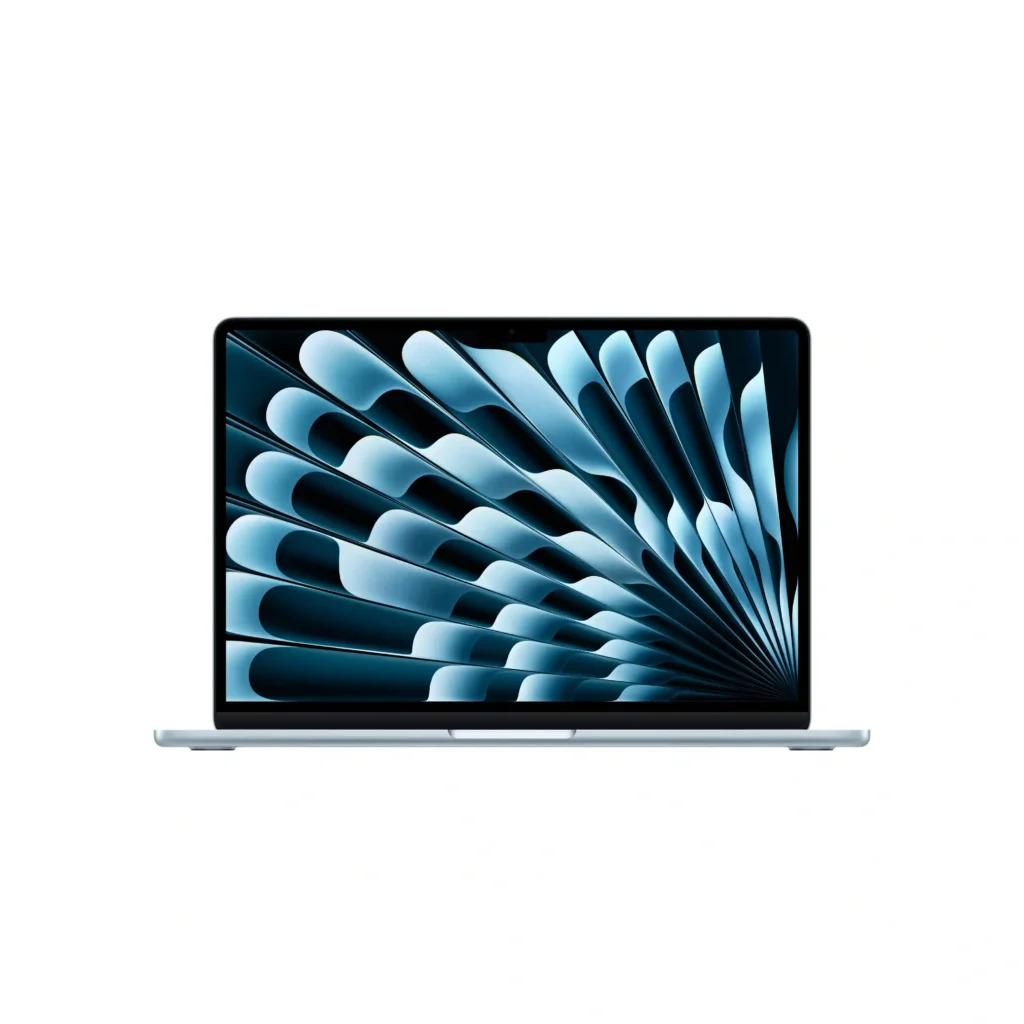
The best laptop for music production is the MacBook Pro 14-inch (M5) for most people. It has a fast CPU, strong cooling, and good ports. For Windows, the ASUS ProArt P16 is our top pick. On a budget, choose the MacBook Air 13-inch (M4) or Acer Swift Go 14.
Quick Answer: Best Laptops for Music Production at a Glance
Minimum Specs
CPU
RAM
OS
Storage
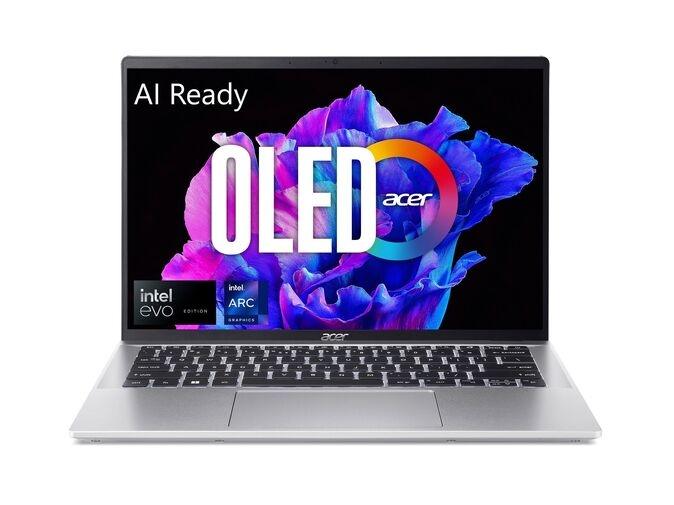
the best budget laptop for music production if you want Windows
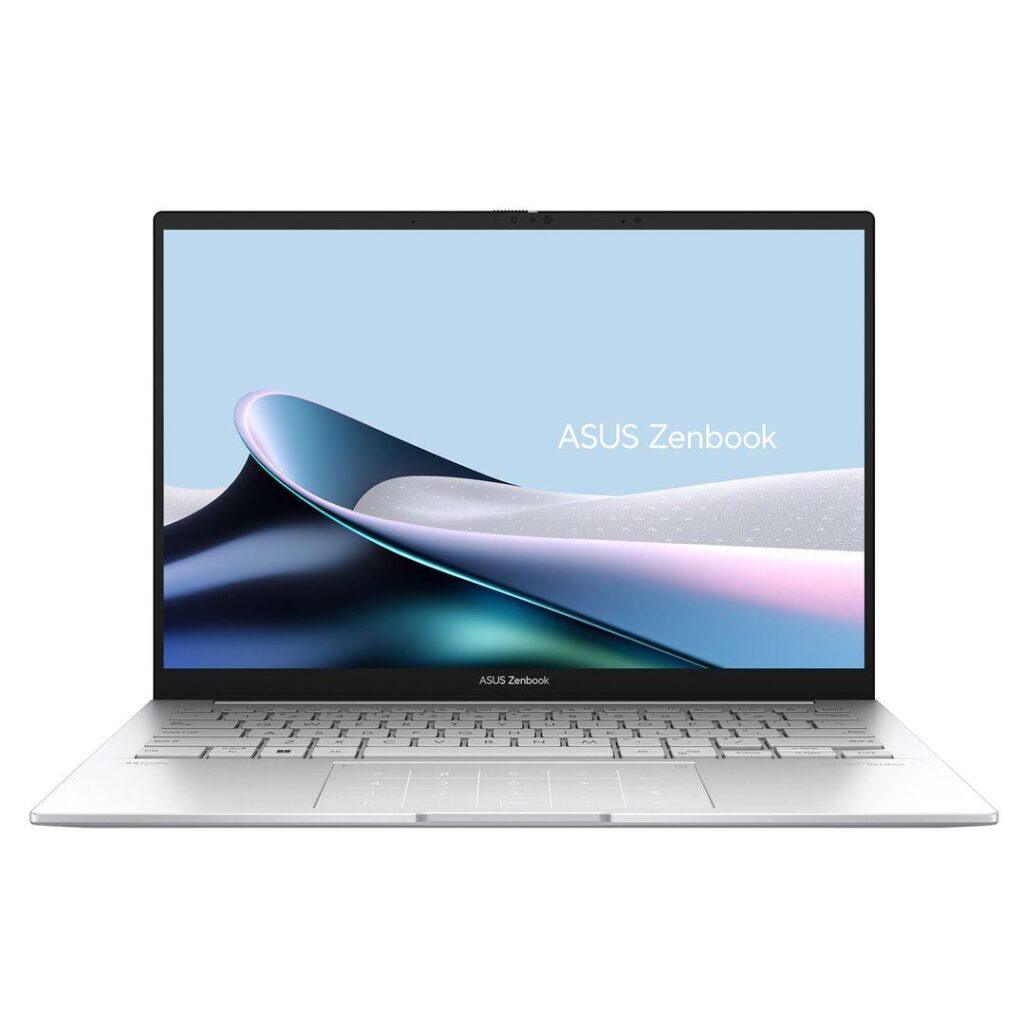
Optimized for smooth live performances with Ableton Live.
Which Laptop Is Right for You?
| Your Workflow | What Matters Most | Top Pick |
|---|---|---|
| Vocal & acoustic recording | Fanless or silent, stable Core Audio | MacBook Air (M3) |
| Heavy electronic / EDM | Fast single-core CPU, 32GB RAM | MacBook Pro (M4 Pro) |
| Film scoring & orchestral | 64GB+ RAM, big SSD | Dell XPS 16 / Mac Studio |
| Live DJ & stage | Tough build, USB-A ports | ThinkPad X1 Carbon |
| Beginner beatmaking | Good value, 16GB RAM | Acer Swift Go 14 |
How We Chose and Tested These Laptops
To find the best laptop for music production, spec sheets aren’t enough. So we ran every laptop through the same test: a 60-track project packed with Serum, Kontakt, and Valhalla reverbs.
We ran it in Ableton Live and FL Studio, and on Macs we also used Logic Pro. Each laptop played the project for 30 minutes at 64, 128, and 256-sample buffers. The 64-sample setting is where weaker machines start to fall apart.
While it ran, we watched CPU load, thermal throttling, and dropouts. On Windows, LatencyMon showed us the DPC latency spikes behind most crackling problems. On Mac, the DAW’s CPU meter and Activity Monitor did the job.
We also measured round-trip latency through a Focusrite Scarlett 2i2 and listened for fan noise while recording. A mic picks up fan whine faster than you’d think. Some laptops stayed almost silent, while others got loud as soon as the load went up.
Last thing: every laptop had to run a USB-C or Thunderbolt interface directly, with no hub in between.
Best Laptops for Music Production: Detailed Reviews
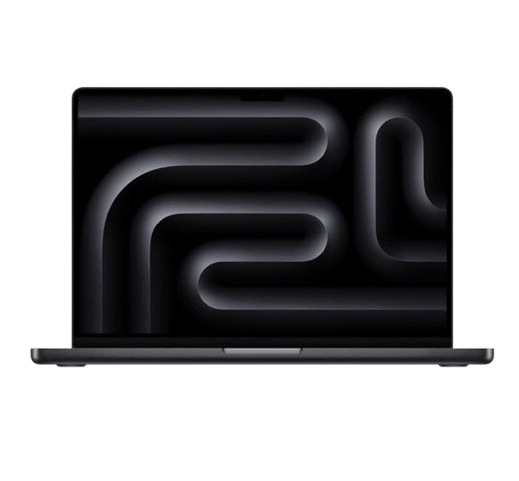
Why We Picked It
It’s small enough to carry everywhere and strong enough to handle a busy session. The fan keeps the chip from slowing down during long exports, which makes it the best MacBook for music production if you want one laptop that does everything
Pros
- Active cooling greatly reduces throttling under heavy plugin loads
- Battery lasts through a full mixing session away from the wall
- HDMI and SD card slot mean fewer dongles
Cons
- 16GB is tight for big sample libraries, so consider upgrading
- The screen feels cramped in busy arrangement views
Real Audio Note
Previous Generation
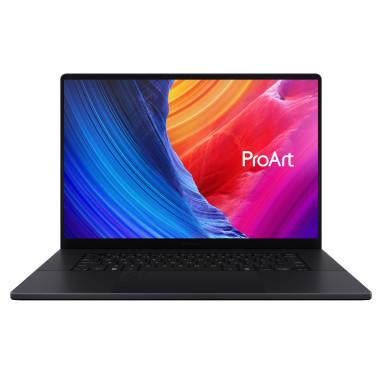
Why We Picked It
Pros
- Strong multi-core CPU handles heavy synths and plugin chains
- USB-A and USB4 let you plug in older gear directly
- 64GB RAM gives you room for big sample libraries
Cons
- Fans get loud under heavy CPU load
- Battery life is shorter than a MacBook's
Real Audio Note
In our LatencyMon check, we saw no major driver interruptions from Wi-Fi or the GPU. Results can vary with drivers and BIOS settings, so run LatencyMon on your own unit too.
Previous Generation
In our LatencyMon check, we saw no major driver interruptions from Wi-Fi or the GPU. Results can vary with drivers and BIOS settings, so run LatencyMon on your own unit too.
3. MacBook Pro 16-inch (M5 Pro)
Why We Picked It
Orchestral work eats memory. One Kontakt template can load gigabytes of samples, and every extra articulation adds to it. With 48GB of RAM and a fast 2TB drive, this MacBook Pro handles big templates much better than most laptops. If you score films or games, it’s the one to beat.
Pros
- 48GB RAM gives large sample libraries plenty of room
- Fast SSD loads big templates quickly
- The 16-inch screen fits long timelines and big mixer views
Cons
- Expensive, especially with high RAM and storage
- Big and heavy to carry around
Real Audio Note
For sample-heavy work, keep your libraries on the internal SSD when you can. If you use an external drive, make sure it’s a fast Thunderbolt or USB4 SSD, since slow drives are the usual cause of disk overload warnings.
Previous Generation
If you have an M3 Pro with 36GB and it handles your templates fine, you can wait. The upgrade makes more sense if you’re running out of RAM or your templates take too long to load.
4.MacBook Air 13-inch (M4)
Why We Picked It
Pros
- No fan means no fan noise in your recordings
- Great value for beginners and home producers
- Light enough to carry to class or a friend's place
Cons
- No fan also means it can slow down under long, heavy loads
- Only two ports, so you'll likely need a hub or dock
Beginners, bedroom producers, vocalists, podcasters, and songwriters working on small to medium projects. GarageBand, Logic Pro, and Ableton Live all run well on it, and many basic audio interfaces work without extra drivers.
You run 80+ track orchestral projects with heavy plugins. Without a fan, it will eventually slow down under a constant heavy load.
Real Audio Note
Under a constant full CPU load, the Air can start to throttle after a while. For normal recording and mixing, you probably won’t notice. Also, 512GB fills up fast with sample libraries, so you may need an external SSD.
Previous Generation
The M4 Air starts at 16GB of RAM, which fixes the biggest problem with the older 8GB models. If you’re looking at a used M2 Air with 8GB, skip it for modern DAW work.
M5 or M4? The newer MacBook Air 13-inch (M5) starts at $1,099. It’s faster, but the M4 is $100 cheaper and still a great pick for beginners. Choose the M5 if you want the newest chip.
5.Acer Swift Go 14
Why We Picked It
It has the best port selection we found at this price. With two Thunderbolt 4 ports and two USB-A ports, you can plug in an audio interface and a couple of MIDI keyboards without a hub. That makes it a smart budget laptop for FL Studio and beatmaking.
Pros
- Bright, sharp 120Hz OLED screen for the price
- All the ports you need, no dongles
- Fast Gen 4 SSD loads samples quickly
Cons
- Fans get louder under heavy plugin loads
- Body mixes plastic and aluminum
- RAM is soldered, so you can't upgrade later
Real Audio Note
Previous Generation
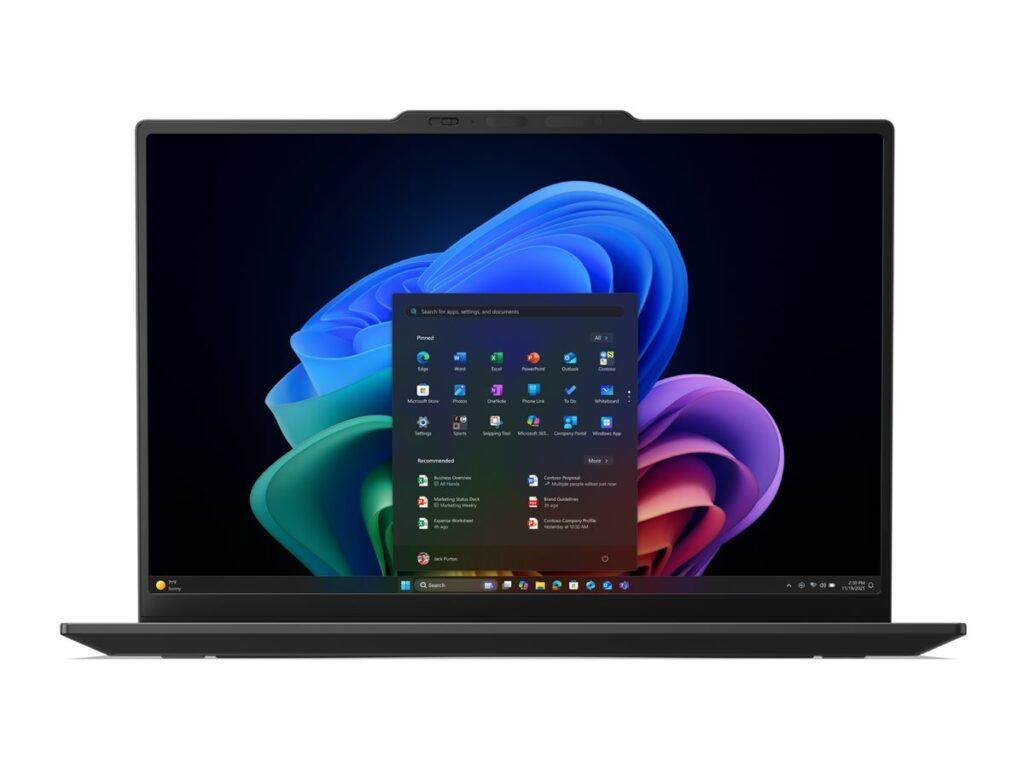
Why We Picked It
It weighs under 1 kg and is built tough, which is what you want when you’re hauling gear to gigs. The newer fan design helps it stay cooler under long loads. It’s a strong pick if you’re looking for the best laptop for Ableton Live on stage, as long as you test your setup first.
Pros
- Very light, easy to carry on tour
- Cool and quiet under steady load
- Tough build that handles travel
Cons
- Expensive
- Only one USB-A port
- 58Wh battery may not last through a long gig without power
Real Audio Note
Previous Generation
7.ASUS Zenbook 14 OLED (UX3405)
Why We Picked It
The Zenbook 14 is light but still has real power. It isn’t the lightest laptop here (the ThinkPad is), but its 75Wh battery is big for a 14-inch laptop, so you can work on plugins away from an outlet for a good while. It’s a strong pick for FL Studio and Ableton users who travel.
Pros
- 16-core CPU handles big DAW projects
- Two Thunderbolt 4 ports
- Large battery for its size
Cons
- RAM is soldered, so no upgrades
- Only one USB-A port
- No SD card reader
Real Audio Note
Previous Generation
Quick Comparison: All Picks Side by Side
Here’s every pick in one table, so you can compare the best laptop for music production by specs, ports, weight, and price. Ports matter more than most people think.
If your MIDI keyboard or older interface uses USB-A, check that column first, or plan to buy a hub.
| Laptop | CPU | RAM | Storage | Ports | Weight | Fan Noise | Price | Best For |
|---|---|---|---|---|---|---|---|---|
| MacBook Pro 14" (M5) | Apple M5 (10-core) | 16GB | 1TB | 3x TB4, HDMI, SDXC | 3.4 lbs | Quiet in normal use | From $1,799 | Best overall, mobile producers |
| ASUS ProArt P16 | Ryzen AI 9 HX 370 | 64GB | 1TB | USB4, USB-C, 2x USB-A, HDMI, SD | 4.08 lbs | Loud under heavy load | From $1,899 | FL Studio, Windows users |
| MacBook Pro 16" (M5 Pro) | Apple M5 Pro (18-core) | 48GB | 2TB | 3x TB5, HDMI, SDXC | 4.7 lbs | Quiet in normal use | From $2,899 | Orchestral, sample-heavy work |
| MacBook Air 13" (M4) | Apple M4 (10-core) | 16GB | 512GB | 2x TB4 | 2.7 lbs | No fan | From $999 | Beginners, vocal recording |
| Acer Swift Go 14 | Core Ultra 5 125H / 7 155H | Up to 32GB | Up to 1TB | 2x USB4/TB4, 2x USB-A, HDMI, microSD | 2.91 lbs | Louder under heavy load | About $800 to $1,050 | Budget Windows, beatmakers |
| ThinkPad X1 Carbon Gen 14 | Core Ultra 5 335 / 7 355 / 365H | Up to 64GB | Up to 2TB | 2x TB4, 1x USB-A, HDMI | 2.16 lbs | Quiet under steady load | About $1,800 to $2,400+ | Live performance, touring |
| ASUS Zenbook 14 OLED | Core Ultra 7 155H (16-core) | Up to 32GB | Up to 1TB | 2x TB4, 1x USB-A, HDMI | 2.69 lbs | Quieter in light work | About $1,049 to $1,299 | Mobile electronic producers |
What Specs Matter for Music Production
CPU: Single-Core Speed vs Core Count
Start with single-core speed. A track and its plugin chain mostly run on one core, so a single slow core can make a heavy synth crackle at a low buffer size, even when the other cores are sitting idle.
Extra cores help once you’re running dozens of tracks side by side. So if you want the best laptop for FL Studio, check single-core strength first, then count cores.
RAM: How Much You Actually Need
Run out of RAM and your laptop starts reading from the drive. That’s usually when the dropouts begin.
- 16GB is fine for beginners and home producers.
- 32GB gives you breathing room for bigger projects.
- 64GB+ only makes sense for orchestral work with huge Kontakt templates.
One thing people miss: on most MacBooks and thin Windows laptops, the RAM is soldered. You can’t fix it later, so get the amount right on day one.
Storage: SSD Speed and Sample Library Space
512GB is enough for the system, your DAW, and your main plugins. Sample libraries eat it quickly, though, and 1TB is the comfortable choice. On a tight budget, buy the smaller drive and keep your samples on a fast external SSD.
That’s how you build the best budget laptop for music production without overspending on internal storage.
Ports: USB-C, Thunderbolt, MIDI and Interfaces
Check the ports before you fall in love with a laptop. Thunderbolt and USB-C cover most modern interfaces, while USB-A is still everywhere on MIDI keyboards and older gear.
Cheap hubs can cause dropouts, so plug your interface in directly if you can. For live use, the best laptop for Ableton Live is the one that connects all your gear without a bag full of dongles.
GPU, Display, Thermals and Fan Noise
Skip the gaming GPU. Music software barely touches it, and integrated graphics are enough. The fan matters more. A loud one can leak into a condenser mic during a quiet vocal take, and you may not notice until you play the recording back.
That’s why fanless laptops like the MacBook Air are so popular with bedroom producers.
Minimum vs Recommended vs Pro Specs
What You Can Ignore, and Where to Spend
- A dedicated gaming GPU
- A 4K or high-refresh screen, unless you simply like the look
- RGB lighting and "AI" branding
- Benchmark scores that say nothing about fan noise
- RAM, because you usually can't upgrade it later
- A fast internal SSD, if you can't rely on an external one
- Ports you'll use every single day
- Screen extras like OLED or touch
- A top-tier CPU, if your projects are small or medium
- Extra internal storage, since a fast external SSD costs less
Specs by Workflow
| Workflow | CPU | RAM | Storage | Priority |
|---|---|---|---|---|
| Beginner | Apple M3/M4 or Core i7 / Ryzen 7 | 16GB | 512GB | Value |
| Band recording | Fast single-core CPU | 16-32GB | 1TB | CPU + ports |
| Electronic production | Fast single-core CPU | 32GB | 1TB | CPU + RAM |
| Orchestral | Pro-level CPU | 64GB+ | 2TB or fast external SSD | RAM + storage |
| Live performance | Reliable mid to high CPU | 16-32GB | 512GB-1TB | Stability + ports |
Mac vs Windows vs Windows on Arm
When to Choose Mac
Macs use Core Audio, which handles low buffer sizes well. Many class-compliant audio interfaces work the moment you plug them in, with no driver install. Some interfaces still need the maker’s software, so check yours first.
Logic Pro runs only on Mac. If it’s your DAW, the choice is already made, and the MacBook Pro is the best MacBook for music production for most people.
Most major plugins now run natively on Apple silicon. Older Intel-only plugins are the weak spot. A native Apple silicon DAW can’t load them directly. Some DAWs can run in Rosetta 2 mode to get around this, but you lose native performance. Check your oldest plugins before you switch.
Two trade-offs: RAM and storage are soldered, so you must choose the right size at purchase. And fanless models like the MacBook Air can slow down under long, heavy loads.
When to Choose Windows
Windows gives you the widest choice. There are more models at every price, and some let you upgrade RAM or storage later. Check the spec sheet first, since many thin laptops now solder the RAM.
It’s also the safer choice for older interfaces and plugins that never got a Mac update. Most plugins still target x86 first.
For low latency you’ll usually install the interface maker’s ASIO driver. That one step is the main setup cost on Windows. Generic drivers like ASIO4ALL are a fallback, not a first choice.
Windows can also suffer from DPC latency spikes, which cause crackling. These come from drivers, Wi-Fi, or power settings, and you can usually fix them. Run LatencyMon on a new laptop and set the power plan to high performance.
For the best budget laptop for music production, Windows has far more options under $1,000, and the best laptop for FL Studio is usually a Windows machine, since FL Studio started there.
Windows on Arm: What Works and What Doesn't
Snapdragon X laptops have very good battery life, and the software side is improving. Native Arm versions of some DAWs and plugins exist, including Ableton Live.
The risk is drivers. Many audio interface drivers run at a low level and must be built for Arm. If your interface maker hasn't done that, the interface may not work at all. Emulation helps with regular apps, but not with drivers.
Older plugins, copy-protection tools like iLok, and niche utilities can also fail or run slowly in emulation. If you're building the best laptop for Ableton Live around an Arm chip, check your exact Live version and every plugin before you buy. Otherwise, stick with Mac or x86 Windows for now.
Quick Decision Framework
- Logic Pro? Get a Mac.
- Windows-only plugins or older gear? Get Windows, and check driver support first.
- Old Intel-only plugins on a Mac? Test them on Apple silicon before you buy.
- Heavy sample libraries? Put RAM and storage first on any platform.
- Live performance? Choose ports, weight, and stability. Test your full rig before the gig.
- Windows on Arm? Check your interface driver, plugins, and licensing first.
Direct OS Comparison for Audio Production
| OS Feature | macOS (Apple silicon) | Windows (x86) | Windows on Arm |
|---|---|---|---|
| Audio drivers | Core Audio, many interfaces need no driver | ASIO, usually needs a driver install | ASIO possible, but Arm driver support is thin |
| Older plugins | Good via Rosetta 2, some Intel-only fail | Best, most plugins target x86 | Mixed, some run through emulation |
| DAW choice | Logic Pro, Ableton, FL Studio, Cubase, and more | Everything except Logic Pro | Growing, but limited |
| Upgrades | None, RAM and SSD are soldered | Possible on some models | Usually none |
| Setup effort | Low | Medium (drivers, power plan) | High |
| Battery life | Very good | Varies a lot by model | Very good |
| Best for | Logic users, simple setup, mobile work | Budget, legacy gear, FL Studio | Mobility, if your gear is confirmed |
Compatibility Checklist
- Your DAW runs natively on the platform
- Your interface has a current driver for your OS and chip
- Your key plugins support your OS and chip
- Your license tools (iLok, etc.) work on it
- Your MIDI gear's ports match the laptop's ports
How Much Should You Spend? Budget Guide
Under $800
This range covers basic recording and simple songwriting projects. For the best budget laptop for music production here, put the money into CPU and RAM, not a fancy body.
Heavy synths and big plugin chains will overload these machines quickly, so expect to bounce tracks to audio often. Used or refurbished models are often your best bet at this price.
$800 to $1,500
This is the sweet spot for serious home producers. You can find 16GB to 32GB of RAM and a fast CPU here,
which is enough for dense effect chains and synth-heavy projects. Most people won’t outgrow a laptop in this range for several years, though RAM limits may show up sooner on sample-heavy work.
$1,500 and Up
This tier suits film scoring, large sample libraries, and touring. You get 32GB to 64GB+ of RAM and fast storage, which helps with big Kontakt templates.
If you want the best MacBook for music production, you’ll likely land here, since the MacBook Pro models sit in this range. Don’t expect it to last forever, though. Buy what you need now.
Refurbished, Used and Previous-Generation
Refurbished laptops can save a lot of money, but check these first:
- Battery health: Check the cycle count. A heavily used battery will need replacing soon.
- Warranty: Buy from a seller that offers one.
- SSD health: Check wear and total data written.
- RAM: Confirm the exact amount, since most can't be upgraded.
For used Windows laptops, run LatencyMon for about 10 minutes before you pay. Constant spikes or crackling can point to driver or hardware problems.
The Hidden Cost: Software
Total Setup Cost Table
| Setup | Laptop | Audio Interface | External SSD | Headphones | Approx. Total |
|---|---|---|---|---|---|
| Budget | $650 | $120 | $80 | $100 | $950 |
| Mid-range | $1,299 | $250 | $150 | $200 | $1,899 |
| Pro | $2,499 | $600 | $300 | $400 | $3,799 |
Prices are rough estimates and vary by country and seller. In Bangladesh, prices and availability can differ a lot, so check local shops and import costs.
Compatibility Check and Quick Setup for Low Latency
Pre-Purchase Compatibility Checklist
- DAW: Make sure it runs natively on your OS and chip.
- Plugins: Check VST3 or AU support (AU is Mac only). Old Intel-only plugins can fail on Apple silicon.
- Audio interface driver: Look for a current driver for your OS version and chip. Class-compliant interfaces often work without one.
- ASIO or Core Audio: Windows needs an ASIO driver for low latency, while Macs use Core Audio.
- Ports: Match your interface and MIDI gear (USB-C, USB-A, Thunderbolt) to what the laptop has.
- RAM: Check what your biggest projects need, since most laptops can't be upgraded.
- Sample storage: Plan where your libraries will live, internal or external SSD.
Fix Crackling and Reduce Latency
Buffer size
Sample rate
Power settings
Background apps
Drivers
Interface settings
Heavy tracks
Decision Flow
Which Laptop Should You Buy?
Final Checklist
FAQ
What is the best laptop for music production?
How much RAM do I need for music production?
MacBook or Windows laptop: which is better for music production?
Is MacBook Air enough for music production?
Do I need a dedicated graphics card?
Can you use a gaming laptop for music production?
Why does my laptop crackle when producing music?
Yes, but it comes with trade-offs. Gaming laptops have strong hardware, though they are often heavy, have short battery life, and run loud fans that a microphone can pick up. If you mostly make beats with headphones, one can work. For recording vocals, a quieter laptop is better.